Download Minecraft Education Mods: bring oversized mobs, drivable trucks, superhero powers, and hundreds of new foods into your classroom world.
Best Minecraft Education Mods for Bedrock
Minecraft Education looks like a separate game. It is not. It runs on the same engine as Minecraft PE, reads the same manifest files, and installs content the same way. That makes the pool of mods for Minecraft Education Edition far larger than the client itself suggests.
The picks below span resource packs, behavior packs, vehicles, weapons, superpowers and survival expansions — every one of them imports without conversion.
How Education Add-Ons Differ From Regular Mods
A regular mod is a behavior pack and a resource pack zipped together as .mcpack or .mcaddon. An Education Add-On is the same file. No separate format, no conversion tool, no dedicated build pipeline.
What changes is the environment around it. There is no Marketplace in Education, so every pack arrives through a manual import. Some Experimental Toggles are locked, and script-heavy add-ons are the ones most likely to be rejected on load.
School-managed devices can block downloads outright.
Traffic flows both ways. A pack built for Minecraft Bedrock Edition usually imports untouched, and an Education-labelled file runs fine in Bedrock. When an import fails, the cause is a version mismatch or an unsupported capability — not the edition it was made for.
Best Minecraft Education Mods
Resource, Sound and Character Packs
Bigger Mobs
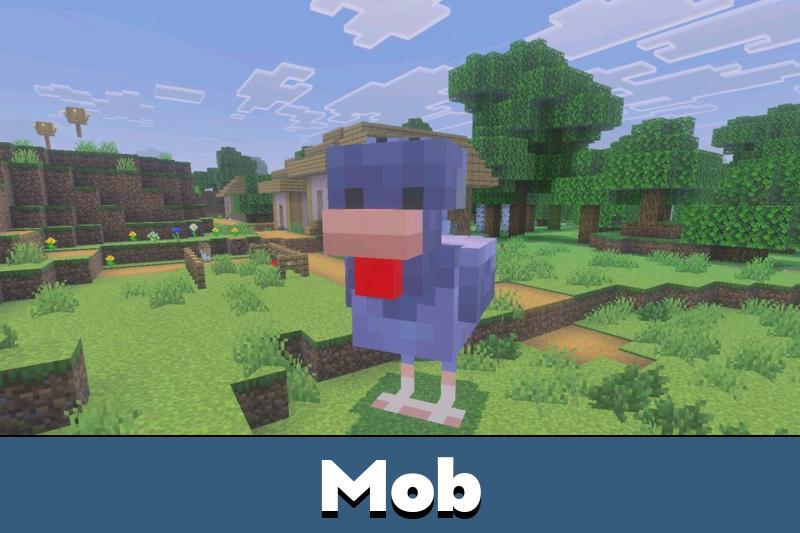
LWME’s pack inflates every mob to looming scale. The change is purely visual, so damage values, spawn rates and loot tables stay untouched and a survival world keeps its balance even while a cow towers over the barn.
Shipped as one small .mcpack, it is the fastest way to confirm imports work on your setup before you commit to anything heavier. Targets 1.21.132.
Meme Sound Pack
Another LWME release, swapping chests, buttons, levers and XP pickups for meme audio. It is resource-pack only, so it layers onto an existing world without touching gameplay logic.
The humor lands hardest in shared sessions, which is exactly why it is worth previewing first. Noted as compatible with Bedrock and Education alike.
Glass Doors Resource Pack
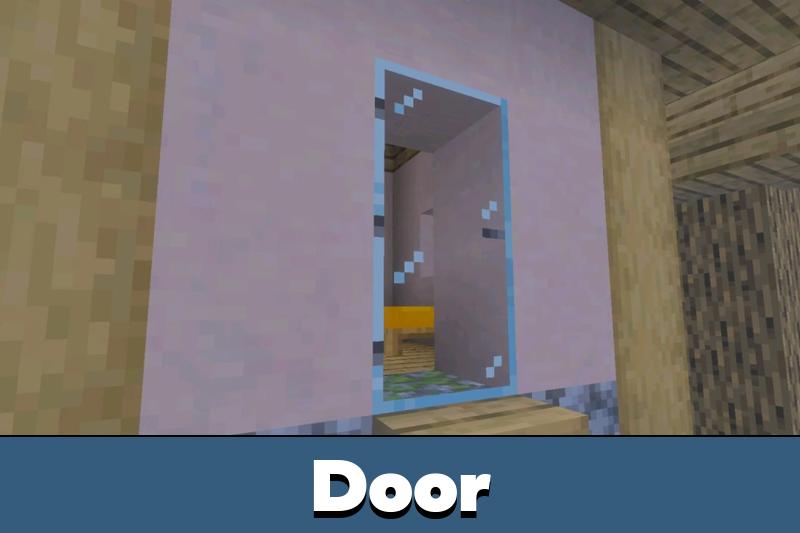
Custom doors were not possible as new blocks when wan6845 built this, so the pack retextures acacia doors into glass instead — a workaround, and an elegant one. Being a texture edit only, it leaves achievements intact.
Among minecraft edu mods this is the safest kind: it conflicts only with packs that touch the same acacia door entry in blocks.json. Runs on Education Edition 1.14.70 and up, or Bedrock 1.16 and up.
Tal’s Armor Rework
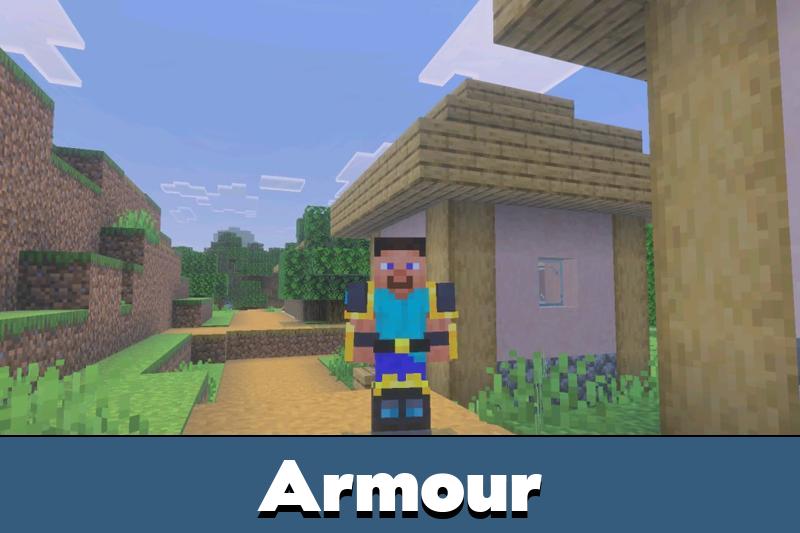
Tal Thompson redraws every armor set in vanilla’s visual language, fixes the flickering texture bug on player armor, and retunes crafting recipes so iron, diamond and netherite read as a real progression.
The download page carries a dedicated Education Edition file alongside the standard builds. Not updated since 2021, so newer armor types are uncovered.
Ore Borders
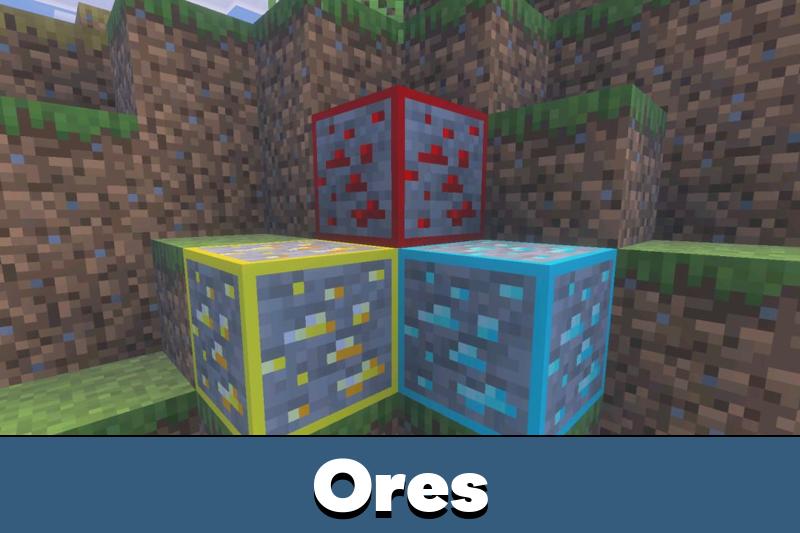
The simplest entry here, and often the most useful. Maxcarnarge outlines each ore in a color matched to the ore itself, so copper, iron, gold and diamond read clearly across a dark cave.
Aimed squarely at Windows 10 and Education installs, and written against 1.14 — worth testing first, since it predates several ore additions.
Vehicle, Technology and Furniture Mods
Truck with Functional Storage
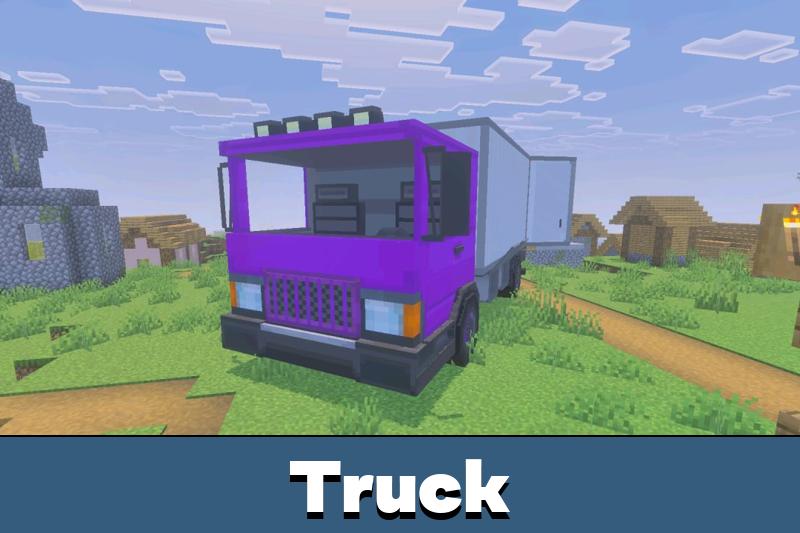
Sodvic’s truck is a drivable vehicle that doubles as a working container, and it keeps achievements enabled. Contents generate when the player exits, so the interior must be clear to populate — the main source of confusion in the comments.
Recent updates added a cab chest, extra lights and reworked wheels. The author confirms this minecraft education mod runs on the Education client, from 1.21.90 onward.
Car and Plane Addon
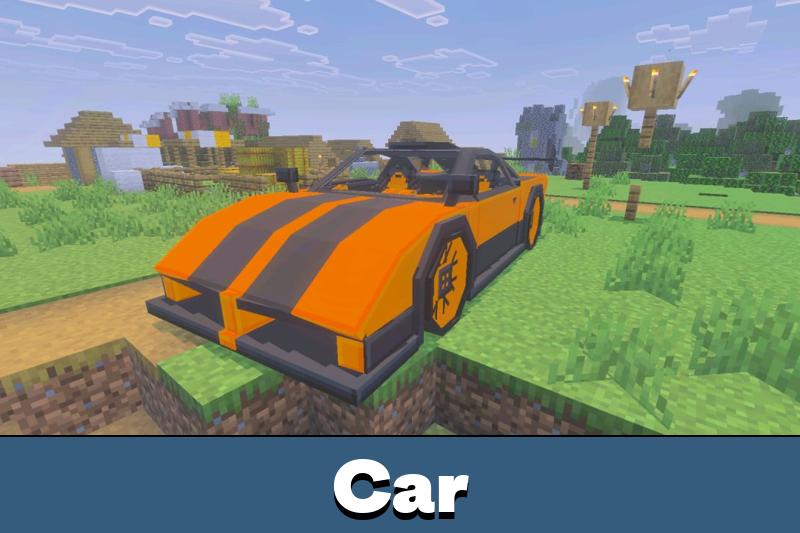
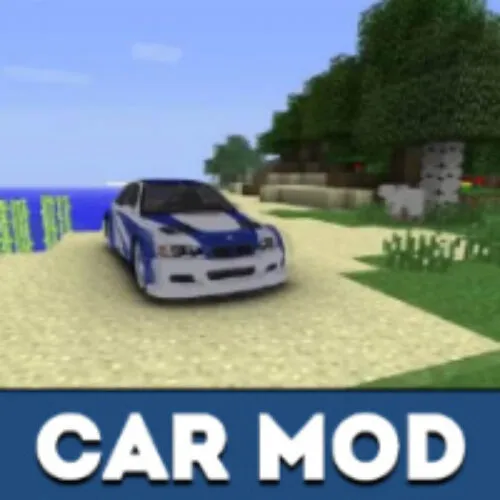
Coalking adds eight cars and three aircraft, all craftable in survival. Flight is deliberately simple: mount up, look up to climb, look down to descend, releasing jump for takeoff.
That gesture-based scheme works well on touchscreens, which matters for iPad and Chromebook deployments. Targets 1.17.11 through 1.18 — treat it as a legacy option.
Working TV Addon 1.2
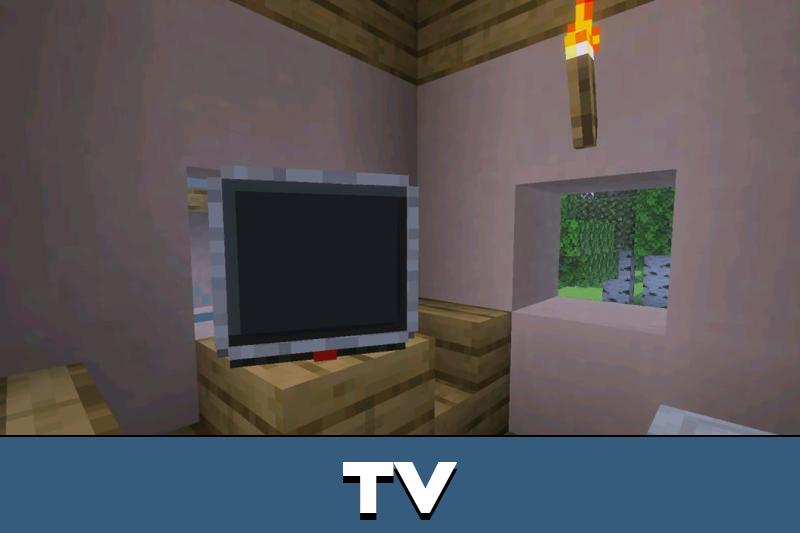
A decorative television that actually plays content, built on armor-stand placement. The 1.2 build refreshed the model and expanded the channel lineup; you sit down and trigger the pose action rather than hitting the block.
Multiple commenters confirm it running in Education. Covers 1.10 through 1.16, and some “full” download links route through third-party shorteners.
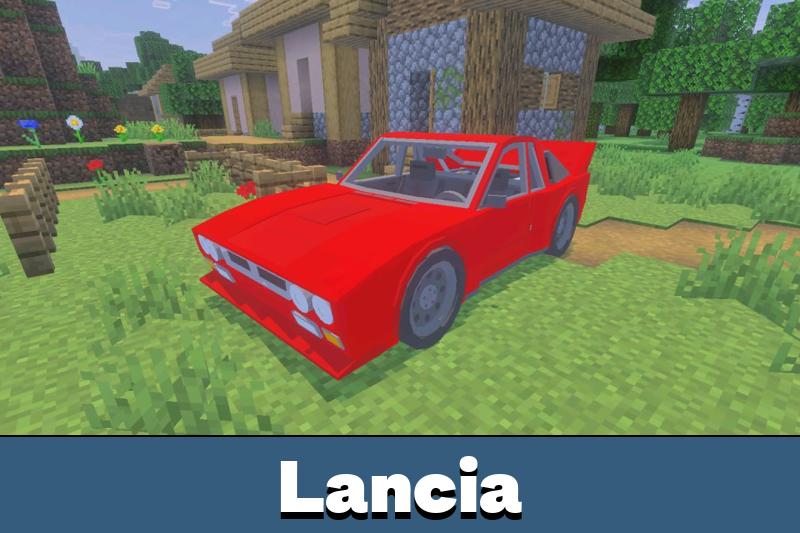
’83 Lancia 037
ashminggu’s Group B rally car is the most detailed single vehicle here — opening hood, working doors, custom engine audio. Separate Windows 10 and mobile builds exist, plus a revised mobile version with reduced speed after touchscreen complaints.
A commenter praises it specifically for working in Education. Supports 1.16 and 1.17; start with the revised build on tablets.
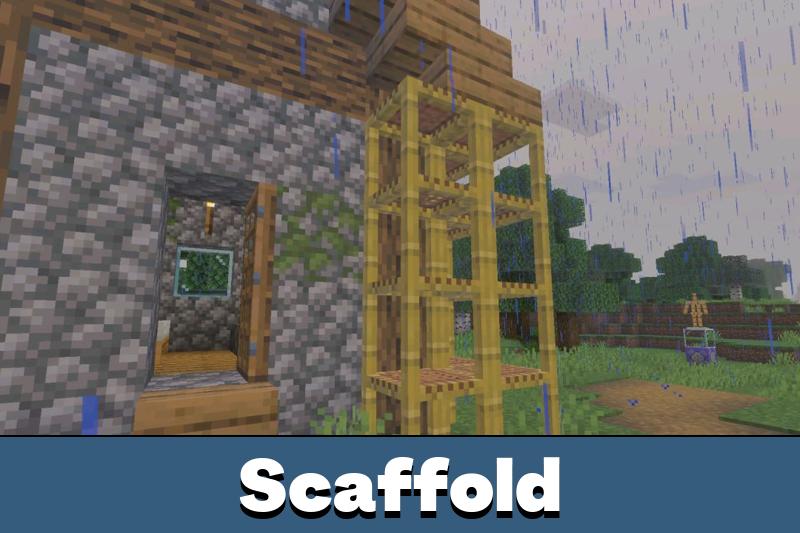
Scaffold Addon/Function Pack
TheLastHacker’s pack is a function pack, not a conventional add-on, so content is triggered with /function rather than pulled from the creative inventory.
It adds a scaffold command that builds support structures for you, and the author tested it in both standard Minecraft and Education. The command-driven design suits classrooms already teaching command syntax. Runs on 1.14 through 1.17.
Weapons, Powers and Survival Mods
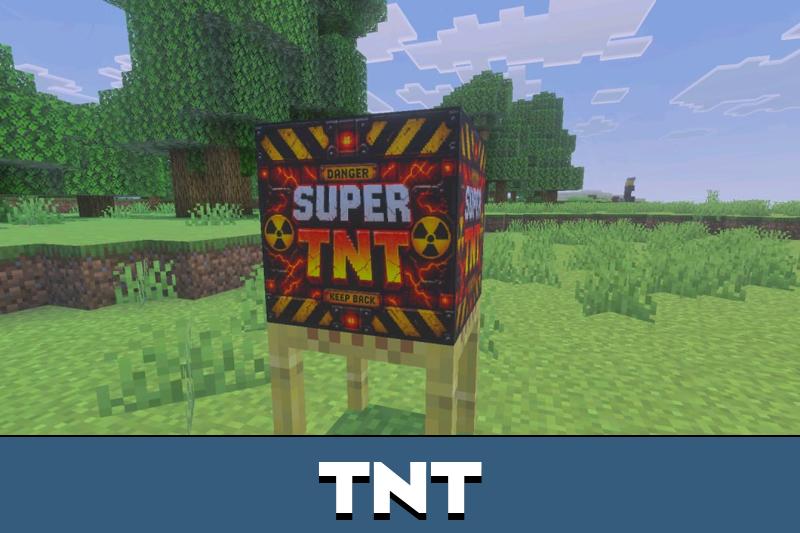
Super TNT
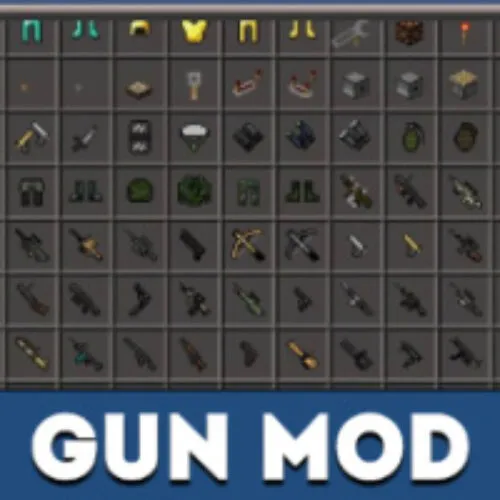
LWME’s overhaul scales up Minecraft’s explosives considerably, and the listing names Education and Bedrock alike. It ships as a compact .mcaddon built for 1.21.132.
Being a behavior pack, it disables achievements in any world it touches — and given the whole point is an immodest blast radius, choose your test site carefully.
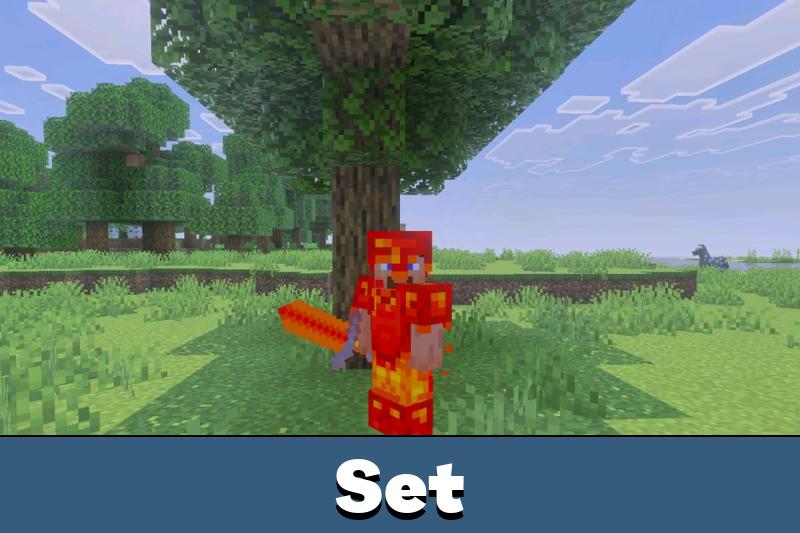
ThePVPLord’s Insane Weapons Addon
A focused combat pack from TheLordOfPVP, and one of the few stating Education compatibility in the description rather than leaving it to the comments.
The release added four armor sets, five weapons, a pickaxe and three custom entities, all under 50 KB. Further updates are signalled, so recheck the page rather than assuming the listed build is final.
Mr. Nido’s Marvel Project
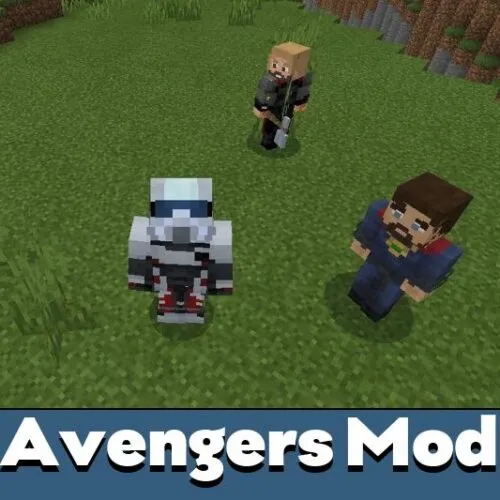
By a wide margin the largest project here. Dozens of heroes and villains with distinct abilities, a Suit Forge workbench with its own crafting interface, Infinity Stones and Gauntlet, generated structures including Stark Tower and the Sanctum Sanctorum, plus support NPCs.
The changelog addresses Education directly, from crouch-to-disable flight to a fixed Silver Surfer animation. Roughly 30 MB, and one user reports a script_custom capability error on certain builds — the classic failure mode for script-heavy minecraft mods education edition users run into.
Mr. Nido’s The Boys
A darker companion piece from the same creator, built around the show’s superpowered cast. Powers take center stage, alongside boss-tier opponents several players want rebalanced.
One tip recurs in the comments: enabling the Education Edition setting is what unlocks flight for certain characters — a rare case of an Education toggle being the fix rather than the obstacle. Just over 3 MB.
Food’s Plus
Dream Pixel’s pack is a genuine survival expansion, not a novelty: over 600 food items across baking, breakfast and beverages, plus new crops, mobs — the ferrets are a fan favorite — and farming vehicles.
Everything is craftable in survival, and later updates reworked crops entirely and added fruit trees and food crates. A pinned comment registers surprise that it runs on Education at all. Supports 1.17.30 to 1.18.30.
How to Install an .mcaddon File
An .mcaddon is a container that holds one or more packs at once — typically a behavior pack and its matching resource pack — so importing a single file installs everything the mod needs.
The general process is the same across every platform: download the file, open it, and let Minecraft Education handle the rest.
The client unpacks the archive and files each component into the correct directory automatically.
- Download the
.mcaddon file to local storage. Do not unzip it.
- Close Minecraft Education if it is already running, so the import registers cleanly on next launch.
- Open the file. On most systems this means double-tapping or double-clicking it in your file manager.
- Minecraft Education launches and shows an import confirmation. Wait for it to finish before doing anything else.
- Create or edit a world, open Settings, then apply the pack under Resource Packs and Behavior Packs.
If the file downloads as .zip instead — which some browsers do automatically — rename the extension back to .mcaddon before opening it.
For a step-by-step walkthrough with screenshots, including how to handle files that refuse to open in the right application, see our mod installation page.
Installing on Windows, Chromebook, iPad and Mac
Windows. Double-click the downloaded file. If it opens in the wrong application, or Windows asks what to open it with, choose Open with → Minecraft Education.
Where both Minecraft Education and Bedrock are installed on the same machine, Windows may default to the wrong client — use Choose another app and tick Always use this app to make the choice stick. Imported packs land in the com.mojang folder inside your user directory.
Chromebook. Minecraft Education on ChromeOS installs through Google Play, and imports go through the Files app. Move the downloaded .mcaddon out of the Downloads folder if your device separates Android storage from ChromeOS storage — the game can only see files in the Android-accessible area.
Managed school Chromebooks are the strictest environment on this list, and if the file will not open at all, the block is likely a device policy rather than a problem with the pack.
iPad. Download the file in Safari, then open the Files app and locate it under Downloads. Tap the file; if iPadOS does not route it automatically, use the Share sheet and select Minecraft Education from the app list.
iPadOS sometimes appends .zip to the filename, so check and rename it in Files if the import does not trigger. This is the platform where touch-friendly mods — the mobile builds of vehicle add-ons, for instance — are worth seeking out specifically.
Mac. Double-click the file in Finder. If macOS opens it with Archive Utility instead, right-click the file, choose Get Info, set Open with to Minecraft Education, and click Change All.
Should Gatekeeper flag the download, open it once via right-click → Open to approve it. Packs are stored in the application’s support directory under your user Library folder.
Compatibility and Import Errors
Most failed imports come down to a small set of causes, and identifying which one you are looking at saves a lot of time.
- Version mismatch. The pack’s
min_engine_version is higher than your client. Education releases often trail Bedrock, so a mod built for the newest Bedrock version may simply be ahead of your install. Check the supported versions on the download page against your client version in the game’s settings.
- Unsupported capability. Errors mentioning a pack capability such as
script_custom mean the add-on relies on scripting features your build does not expose. There is no user-side fix; you need either a different version of the pack or an updated client.
- Wrong file extension. Browsers frequently save
.mcaddon and .mcpack files as .zip. Renaming the extension back resolves it in most cases.
- Conflicting packs. Two resource packs editing the same texture or the same section of
blocks.json will fight, and whichever sits higher in the pack order wins. Reorder them in world settings rather than removing one outright.
- Achievements. Resource packs leave achievements intact; behavior packs disable them. Several mods above advertise themselves as achievement-friendly precisely because this is the default expectation.
- Managed accounts. On school-issued devices, downloads and sideloaded imports may be blocked at the policy level. If nothing imports regardless of the file, this is the likely explanation, and it needs an administrator rather than a workaround.
When a mod imports but nothing appears in game, the pack almost certainly was not applied to the world. Import and activation are separate steps, and skipping the second one is by far the most common mistake.
FAQ
Can I download Minecraft Education mods free from the same pages Bedrock players use?
Yes. Community pages host the same .mcaddon and .mcpack files for both clients, so minecraft education mods download free from any standard listing. Only the import route differs, since Education has no Marketplace.
Where do downloaded mc edu mods go after I open the file?
The client unpacks the archive into its own behavior pack and resource pack directories automatically. Nothing appears in your world until you activate it under Settings.
Do regular Bedrock add-ons work in Minecraft Education?
Usually, yes. Both clients read identical pack structures and manifest files, so a Bedrock .mcaddon imports without conversion. The exceptions are add-ons depending on experimental toggles or scripting capabilities the Education build restricts.
Why did my add-on import successfully but nothing shows up in game?
Importing only installs the pack; it does not enable it. Open your world’s settings and activate it under both Resource Packs and Behavior Packs, then reload the world.
Will these mods disable achievements?
Resource packs and texture packs will not. Behavior packs generally do, since they alter gameplay logic. A handful of the picks above are built to stay achievement-friendly, and their download pages say so.

I tried the truck add-on first and was surprised it actually imported without any messing around. Storage works too, which makes it way more useful than I expected.
Thanks
It’s so nice
I whant tho see ith
Its cool
Good