Download OS Client Texture Pack for Minecraft PE: create a personalized PvP interface with movable HUD widgets, combat indicators, chunk navigation, character accessories, and redesigned game menus.
OS Client Texture Pack for Minecraft PE
OS Client Texture Pack by oSkullo gives Minecraft Bedrock Edition a completely different interface. Instead of keeping the standard game layout, players can organize performance indicators, combat information, navigation elements, and visual effects according to their preferences.
The main advantage is customization. Almost every feature can be switched on or off independently, so the screen does not have to become crowded with unnecessary information.
Everything works through the resource pack settings. No separate launcher is needed, making OS Client suitable for players who want additional interface features without changing how they normally start the game.
OS Client
The OS Client Texture Pack allows players to arrange useful information around their preferred screen layout. Each indicator has individual controls for position, transparency, and size.
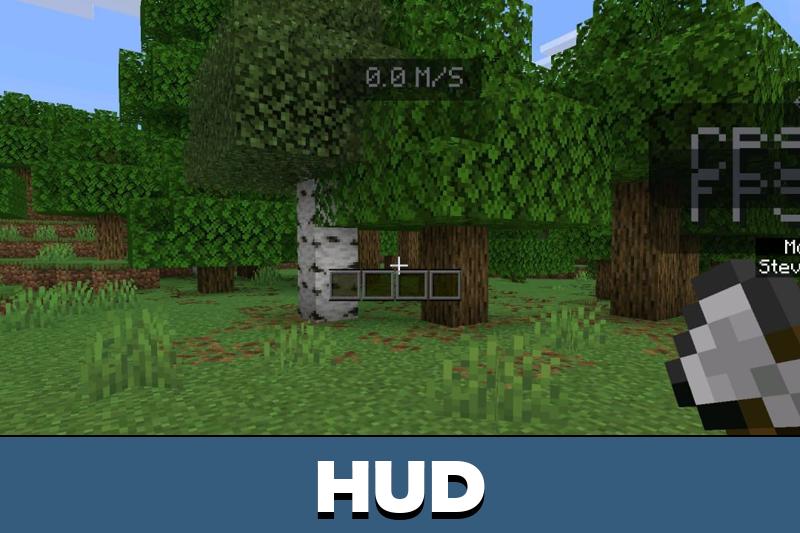
For competitive gameplay, the interface provides an FPS counter to monitor frame rate and a CPS counter to display clicking speed. A separate speedometer measures movement in blocks per second.
Players can also enable a keystroke display showing Jump, Sneak, LMB, and RMB inputs. This feature is useful for observing movement and attack controls during gameplay.
Armor information appears in a dedicated HUD with four layout options. Durability can be displayed through numbers or visual bars, while vertical and horizontal arrangements help accommodate different screen sizes.
The adjustable layout is particularly useful on phones, where touch controls already occupy a significant part of the display.
Chunk Navigation
OS Client includes a compact map that helps players identify nearby chunk boundaries without opening another screen.
The minimap has adjustable viewing distance and transparency. It can be moved to a convenient position, making it possible to keep navigation information visible while exploring or building.
Chunk borders can use the familiar Java-style appearance or alternative colors. Ten color choices and a Rainbow option are available, and boundaries can remain visible in third-person view.
Waypoint beams can remain visible for 1, 10, or 60 minutes. The minimap and chunk borders have separate display settings.
These features are useful when organizing construction areas, checking nearby chunks, or returning to a marked location.
Players looking for similar interface-focused customization can browse Utility Texture Packs for MCPE and discover other ways to adjust the visual presentation of the game.
Combat Information
During PvP encounters, OS Client provides visual indicators that help players understand what happens during each exchange of attacks.
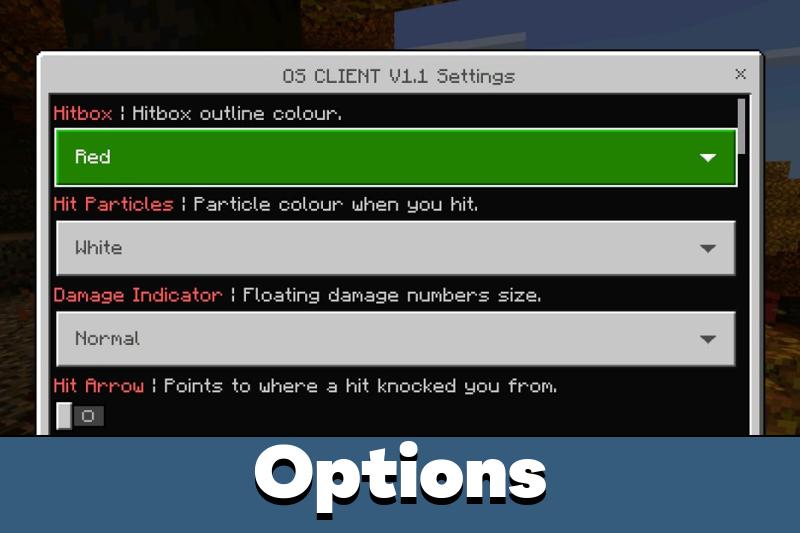
The damage display shows floating numbers above a target. Players can choose four sizes, from Small to Huge, depending on how noticeable they want the information to be.
An incoming hit arrow indicates the direction from which damage was received. This can help identify an opponent’s position when several players are fighting nearby.
Hitbox outlines are available in nine colors. Successful attacks can also produce particles in ten colors or a changing Rainbow effect.
For additional visual customization, the texture pack offers five particle trail styles:
- Hearts;
- Stars;
- Flames;
- Sparkles;
- Skulls.
The effects can be configured independently, allowing players to create a restrained competitive interface or a much more colorful appearance.
Animated Player Accessories
The customization extends beyond the interface. OS Client includes cosmetic elements that change how characters look in the world.
Players can equip wings, headbands, halos, auras, and floating decorations. Animated accessories include a cape and katana with additional movement options.
A small kitten can accompany the character in several ways. It can float nearby, sit on the player’s shoulder, or walk alongside them.
Darkness-themed gloves and shoes provide further appearance options.
The Hide My Armor feature is particularly useful for displaying these accessories. It conceals the visible armor appearance, allowing the chosen character style to remain noticeable.
Redesigned Menus
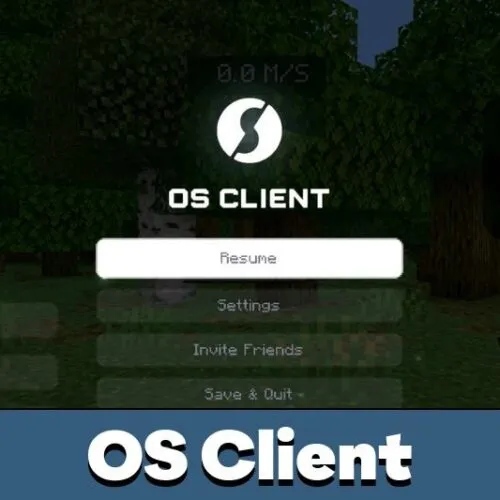
The OS Client Texture Pack also changes the presentation of the game’s main screens. The start menu, pause screen, and loading interface receive a coordinated custom design.
An animated logo replaces the ordinary presentation, while custom clicking sounds give menu interactions a different feel.
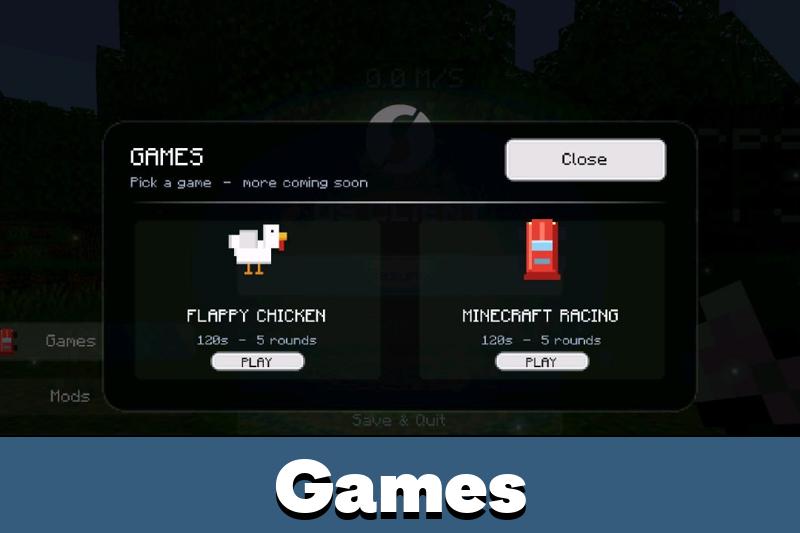
The interface includes additional entertainment features, such as built-in mini-games and a music card. A redesigned chat screen completes the visual changes.
For players who enjoy background music, a separate extension provides access to a collection of 20 tracks.
The music extension is optional and must be installed separately from the main collection.
Installation and Settings
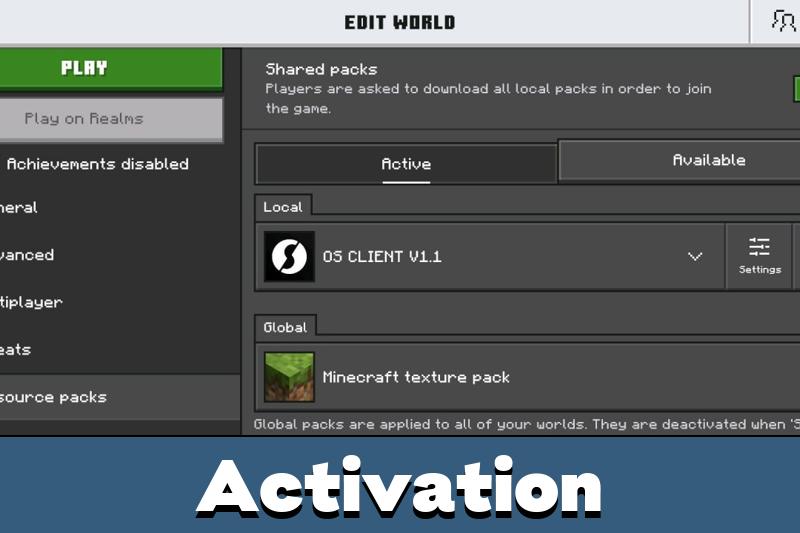
Installing OS Client requires importing its .mcpack file and activating the texture pack through Global Resources.
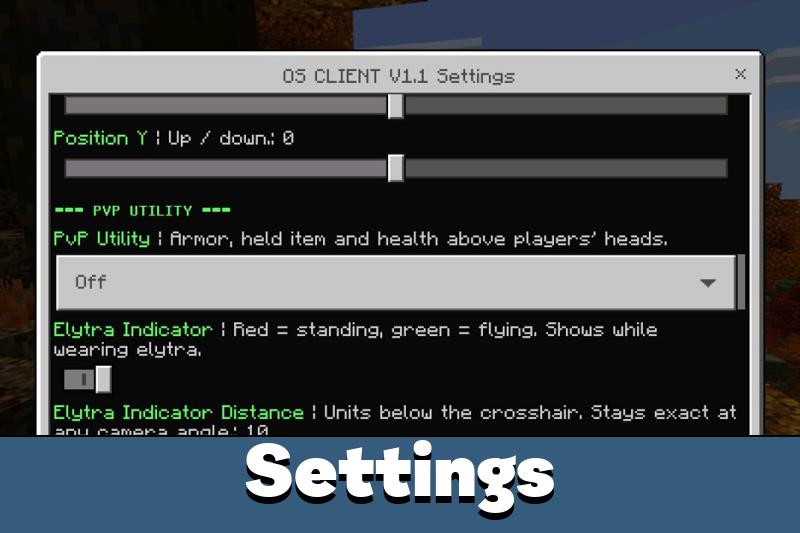
After activation, the Pack Settings section provides access to the available customization options. Players can enable selected indicators, change their appearance, and arrange their positions on the screen.
The recommended setup is straightforward:
- Import the downloaded .mcpack file.
- Open Global Resources and activate OS Client.
- Move it to the top of the active pack list.
- Open Pack Settings and choose the required interface features.
- Adjust the HUD layout before entering the game.
For mobile users, placing indicators away from movement and interaction controls can make the interface easier to use.
The 20-track music player requires the separate OS Client Music extension. Activate it above OS Client in Global Resources for the music feature to work.
Available customization options may differ between devices depending on their support for resource pack settings.
My brother saw my screen and asked why I had a tiny speedometer in the corner. Now we’re both using it to compare our parkour runs. Still haven’t managed to beat his time though.